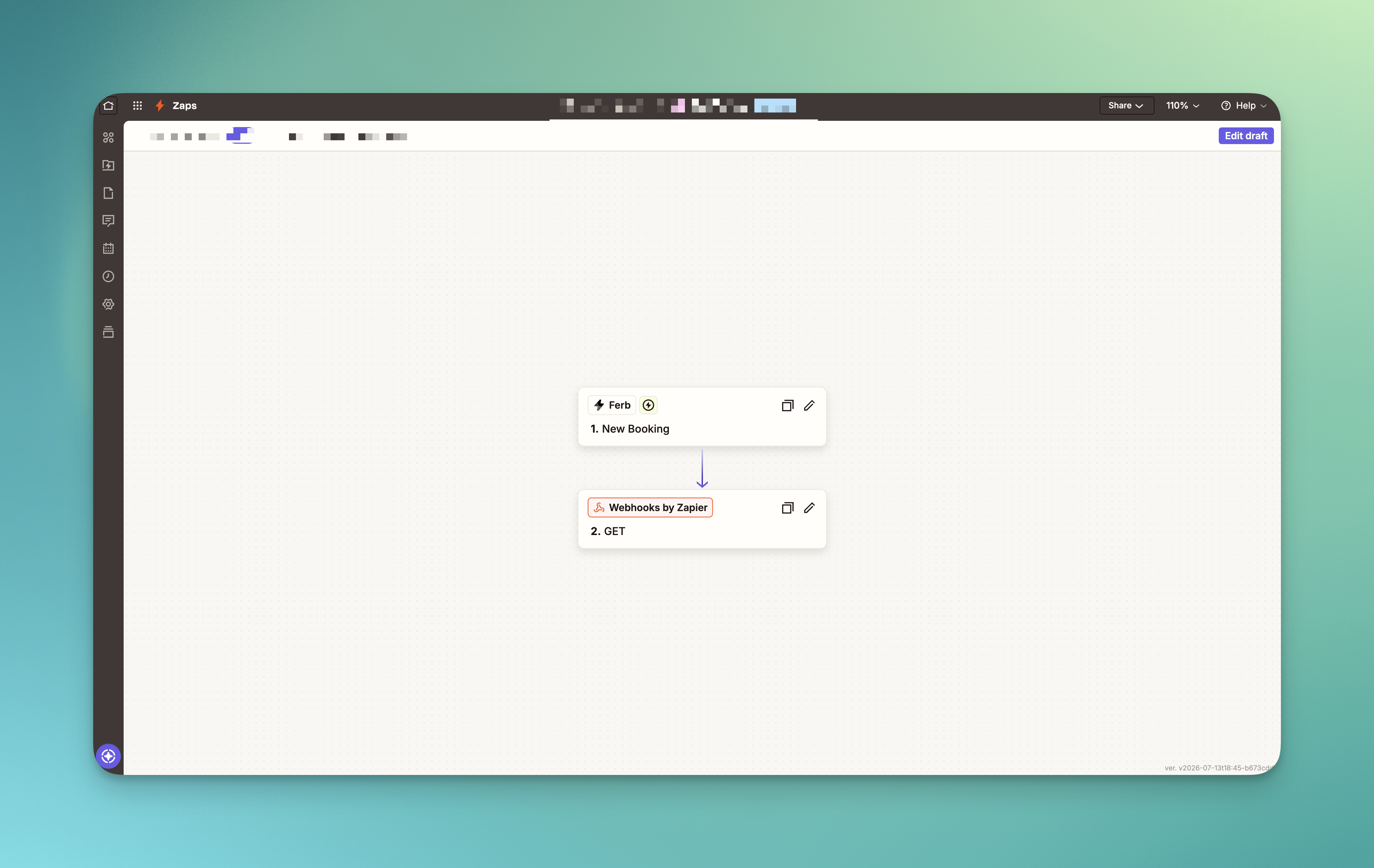
Connect Zapier
Connect Zapier to trigger automations from your Ferb activity, such as new bookings, memberships, and check-ins. The connection is made in Zapier; in Ferb you approve access and can revoke it.
You need the owner or admin role.
Connect from Zapier
In Zapier, create a Zap and choose the Ferb app.
Pick a Ferb trigger (for example, New Booking) or a search.
Click Sign in to Ferb and sign in with the account that owns your studio.
Review the Ferb consent screen and approve access.
When setting up the trigger, choose the Location if you want to limit it, or leave it to receive events from all your locations.
What Zapier can do
Zapier connects read-only. It can react to Ferb events (new customer, bookings, appointments, check-ins, no-shows, memberships, orders, class changes) and look up records (find a customer, booking, appointment, or session). It cannot create or change anything in Ferb.
Manage or disconnect
In Ferb, go to Settings -> API/AI access -> Connected automations to see your Zapier connection and its status.
Turning off a Zap in Zapier stops that one automation.
Revoke Zapier here disconnects Zapier from your studio and stops all related Zaps. They must reconnect afterward.
Troubleshooting
A Zap is not receiving events. Check that the Zap is on, the Ferb connection is active, and the event's location is in scope.
You do not see the Zapier option. It may not be enabled for your studio yet.
You cannot connect or revoke. This needs the owner or admin role.
Related
Browse and install integrations
